
Every PC gamer faces the same frustrating dilemma. You launch a beautiful new video game, only to discover that it runs like a slideshow. Alternatively, you turn every option down to the absolute minimum, and the game looks like a blurry mess from twenty years ago. Finding the perfect balance between beautiful visuals and fluid performance can feel like an impossible task.
Fortunately, you do not need an expensive, top-tier system to enjoy a responsive and stutter-free experience. By understanding how individual display settings affect your hardware, you can easily rescue your frame rate. Small, intentional adjustments can provide a massive boost to your system stability without sacrificing the clarity of your virtual world.
This comprehensive guide breaks down the best graphics settings for smooth gameplay for both beginners and intermediate players. We will look at exactly what these options mean, why they impact your system, and how to calibrate your setup for optimal performance. Whether your goal is to climb the ranks in competitive shooters or enjoy immersive open-world adventures, these optimizations will transform your gaming experience.
What is Best Graphics Settings for Smooth Gameplay?
The phrase best graphics settings for smooth gameplay refers to a customized configuration of in-game options that balances visual fidelity with system performance. Visual fidelity means how detailed, sharp, and realistic a game looks on your screen. System performance is primarily measured in frames per second, which tells you how many individual images your computer renders every second.
When a game runs with poor configuration, your graphics processing unit faces an overwhelming workload. This results in dropped frames, visible stuttering, and severe input lag, which is the delay between pressing a button and seeing the action on your screen. Adjusting these settings allows you to reallocate your system resources effectively.
Optimizing your graphics options involves finding the exact sweet spot where the game looks crisp, but your hardware handles the workload easily. This process requires turning down resource-heavy features that offer very little visual improvement, while keeping essential clarity features turned up. The final goal is a stable frame rate that matches or exceeds your monitor’s capabilities.
Why is Best Graphics Settings for Smooth Gameplay Important?
Configuring the best graphics settings for smooth gameplay is critical because it directly influences your overall enjoyment, immersion, and mechanical success. When your frame rate fluctuates rapidly, it ruins the illusion of a living, breathing virtual environment. Sudden performance drops cause your screen to hitch, breaking your focus and causing immense frustration during gameplay.
In fast-paced, competitive multi-player environments, smooth performance is a massive mechanical advantage. A higher, stable frame rate reduces your total system latency, allowing you to react to enemy movements fractions of a second faster. If your display stutters during a critical shootout, you will likely lose the engagement simply because your PC failed to register the action in real time.
For single-player exploration games, correct settings protect your hardware from unnecessary strain. Running every single option on a maximum preset causes your components to generate immense heat, leading to thermal throttling. Thermal throttling occurs when your hardware intentionally slows itself down to prevent permanent heat damage, causing severe performance drops. Proper optimization keeps your components running cool and stable.
Detailed Step-by-Step Guide to Optimizing Graphics Settings
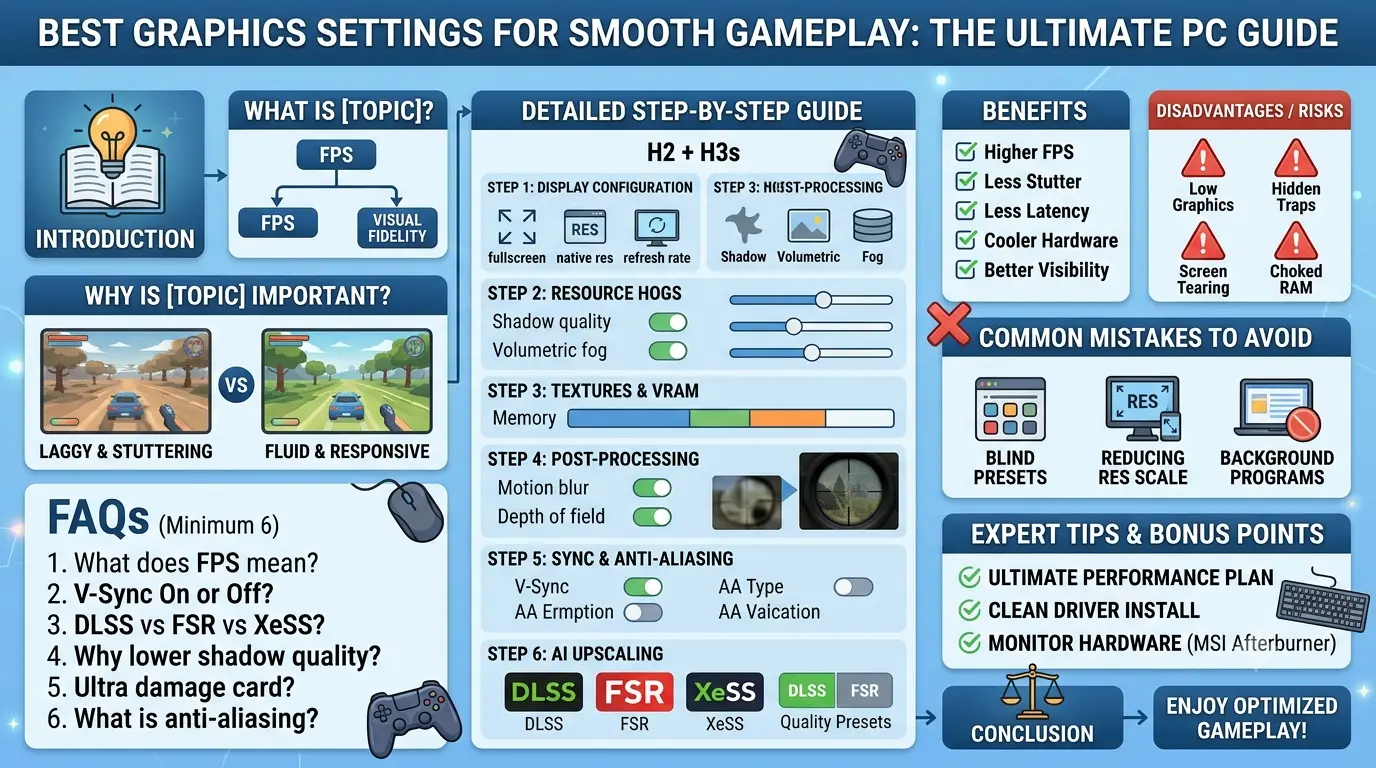
Optimizing your video game requires a methodical approach. Instead of guessing or changing values at random, you should adjust settings based on how much stress they put on your graphics card. Follow this step-by-step breakdown to configure your display properties for the ultimate balance of beauty and speed.
1. Establish the Baseline Display Configuration
Before touching advanced rendering choices, you must configure your primary display settings correctly. These options dictate the foundational workload for your entire computer system.
- Display Mode: Always select Fullscreen. Avoid Windowed or Borderless Windowed modes unless you constantly switch between multiple monitors. Dedicated Fullscreen mode allows your operating system to prioritize the game process entirely, bypassing the resource overhead of the Windows desktop manager. This single change drastically reduces input lag.
- Screen Resolution: Set this to your monitor’s Native Resolution (such as 1920×1080 for Full HD, or 2560×1440 for Quad HD). Lowering your resolution below native will instantly boost your frames, but it makes the entire image incredibly blurry and washed out. Keep this native, and use upscaling tools later if you need extra performance.
- Refresh Rate: Ensure this matches the highest capability of your monitor (such as 144Hz, 240Hz, or 360Hz). Games often default to 60Hz on a fresh installation, completely wasting the potential of a high-speed gaming screen.
2. Tame the Major Resource Hogs
Certain parameters demand immense processing power while offering very minor visual changes during fast motion. Lowering these options provides an immediate, massive boost to your frame rate.
- Shadow Quality: Move this setting down to Medium or Low. High-resolution dynamic shadows require your graphics card to calculate light pathways for thousands of moving objects simultaneously. Dropping shadow quality down often yields a 10% to 15% improvement in frame rates with very little impact on how the world looks.
- Volumetric Fog and Clouds: Set these to Low or turn them Off. This feature simulates realistic weather, mist, and sunbeams. While beautiful in screenshots, it is one of the heaviest performance killers in modern gaming.
- Reflections: Drop these to Medium. Screen-space reflections look spectacular on wet pavement or shiny floors, but they destroy your performance. Medium presets provide clean reflections without causing your system to hitch.
3. Manage Textures and VRAM
Texture settings determine the sharpness of surfaces, brick walls, fabrics, and character clothing. This option depends heavily on your video random access memory, which is the dedicated memory built into your graphics card.
- Texture Quality: Set this according to your available memory. If your card has 8GB of memory or more, you can safely set this to High or Ultra without losing performance. If you have less than 6GB of memory, drop this to Medium. Unlike shadows, texture quality does not strain the processing core; it simply occupies storage space on your card. If you exceed your memory limit, the game will stutter violently as it forces your system to use slower system RAM.
- Texture Filtering (Anisotropic): Set this to 8x or 16x. This setting keeps textures looking sharp when viewed from sharp angles or long distances. It uses almost zero processing power on modern graphics cards, making it an easy choice for maintaining visual clarity.
4. Adjust Post-Processing and Camera Effects
Post-processing applies filters, lighting glares, and artificial lens mechanics after the basic scene has already been rendered. Many of these features actually hurt visual clarity during active gameplay.
- Motion Blur: Turn this completely Off. Motion blur intentionally creates a smeary trail behind objects when you rotate your camera. It is designed to hide low frame rates on older home consoles, but on a computer, it reduces target visibility and can cause physical motion sickness.
- Motion Blur Example: Imagine scanning a horizon for a hidden sniper. With motion blur active, spinning your camera turns the entire landscape into a chaotic streak of colors, blinding you to threats. Turning it off keeps every rock and tree perfectly sharp during movement.
- Depth of Field: Turn this Off. This effect blurs objects that are out of your character’s direct line of sight, mimicking a camera lens. In real-world gameplay, it prevents you from noticing distant movements in your peripheral vision.
- Film Grain and Chromatic Aberration: Disable both. These settings introduce vintage camera noise and colored color-splitting artifacts. They reduce image sharpness and add unnecessary visual clutter to your display.
5. Choose the Right Synchronization and Anti-Aliasing
Smooth movement requires your system to handle jagged edges and frame delivery efficiently without introducing delay.
- Anti-Aliasing (AA): Use efficient options like SMAA or FXAA, or rely on modern upscaling alternatives. Traditional anti-aliasing techniques like MSAA render scenes multiple times to smooth out jagged lines, which cripples performance.
- Vertical Sync (V-Sync): Turn this Off in your in-game menu if you experience sluggish controls. V-Sync forces your graphics card to wait for your monitor to finish displaying a frame before sending a new one, which eliminates screen tearing but introduces noticeable input delay. Instead, use hardware-level solutions like G-Sync or FreeSync if your monitor supports them.
6. Leverage Modern AI Upscaling Tools
If you still need higher performance after tweaking individual options, look for modern spatial reconstruction technologies in your game’s video menu.
- Upscaling Options: Enable DLSS (for Nvidia users), FSR (for AMD users), or XeSS (for Intel users). These intelligent technologies render the video game at a lower internal resolution, then use advanced temporal algorithms to upscale the image to match your native screen.
- Upscaling Profile: Set the tool to the Quality preset. This single feature can boost your frame rate by 30% or more while keeping the final image looking nearly identical to native resolution.
Benefits of Optimizing Graphics Settings
Investing a few minutes into calibrating your internal video settings offers immediate, noticeable upgrades to your user experience. Here are the core benefits of running optimized parameters:
- Drastically Higher Frame Rates: Turning off heavy atmospheric effects allows your hardware to output significantly more frames per second, creating an incredibly smooth visual flow.
- Elimination of Severe Stutters: Optimizing memory consumption ensures your graphics card never runs out of native video memory, removing sudden frametime spikes and jerky hitches.
- Lower System Input Latency: Higher frame rates allow your monitor to receive fresh information much faster, making your mouse movements feel incredibly instantaneous and responsive.
- Reduced Hardware Temperatures: Lowering redundant processing tasks keeps your graphics card from running constantly at 100% capacity, lowering fan noise and extending component life.
- Clearer Enemy and Threat Visibility: Disabling cinematic blurs, heavy fog, and film grain makes it significantly easier to spot distant targets, giving you an immediate competitive edge.
Disadvantages and Risks of Poor Graphics Configuration
Leaving your game settings on unoptimized defaults or applying incorrect tweaks can lead to noticeable issues. Understanding these risks will help you avoid extreme configuration choices:
- The “Potato Graphics” Effect: Dropping essential parameters like resolution scale or texture quality too low makes the game look incredibly pixelated, ruining the artistic vision of the creators.
- Loss of Competitive Traps: Lowering shadow levels too far can completely delete character shadows cast around corners, removing crucial tactical info during multiplayer matches.
- Screen Tearing Artifacts: Disabling synchronization features entirely without an adaptive sync monitor causes horizontal lines across your display when your frame rate shifts quickly.
- Unstable Frame Pacing: Setting an un-capped frame rate on a weak processor can cause massive gaps between individual frame delivery times, making 60 frames per second feel completely choppy.
- Crashing from Memory Over-allocation: Forcing extreme texture settings on an entry-level graphics card will choke your video memory, causing the game application to freeze or crash to the desktop.
Common Mistakes to Avoid
Many players fall into predictable traps when trying to clean up their computer performance. Recognizing these common errors will save you hours of unnecessary troubleshooting.
The most frequent mistake is using the global Low, Medium, or High Presets blindly. Game developers build these templates as generic groupings. If you select the absolute “Low” preset, you turn down settings that do not hurt performance, destroying your image quality for no reason. Conversely, selecting “High” activates hidden resource drains like ultra-displacement maps. Custom tuning is always superior.
Another major error is lowering the Resolution Scale slider below 100%. This is entirely different from changing your main resolution. It forces the game engine to render internal 3D assets at a tiny fraction of your screen size while keeping the user interface elements clean. This results in a muddy image that strains your eyes. Use quality upscalers like DLSS or FSR instead, as they use intelligent reconstruction rather than simple stretching.
Finally, players often forget to close Background Programs before launching intensive games. Web browsers with dozens of open tabs, recording software, and heavy overlay utilities hog valuable system RAM and processor cycles. This creates massive background stuttering regardless of how perfectly you optimized your internal graphics settings.
FAQs
What does FPS mean, and why does it matter for smooth gameplay?
FPS stands for Frames Per Second, which counts how many static images your computer produces in one single second. A higher number means your eyes receive more visual updates, making transitions look fluid. For casual gaming, 60 FPS is widely considered the standard for comfort. For competitive multiplayer matches, players strive for 144 FPS or higher to minimize system delay and maximize trackable motion.
Should I choose V-Sync On or V-Sync Off in my game settings?
For almost all scenarios, you should turn V-Sync Off inside your game’s video options menu. V-Sync removes horizontal screen tearing lines, but it introduces a heavy, sluggish delay to your mouse inputs because it forces your hardware to pause frame delivery. If your screen tears constantly, enable G-Sync or FreeSync in your graphics card control panel instead, as these hardware features fix tearing without causing input lag.
What is the difference between DLSS, FSR, and XeSS?
These are modern resolution upscaling technologies developed by different hardware brands. Nvidia creates DLSS, which uses specialized AI processors found only on RTX graphics cards to recreate pristine image details. AMD develops FSR, and Intel creates XeSS; both of these use open-source algorithms that run on almost any graphics card. All three options help low-end hardware hit high frame rates by rendering games at a lower internal resolution safely.
Why does lowering shadow quality improve performance so much?
Shadow calculations are incredibly complex math problems for a computer processor. The system must track your global light source, map the geometry of every single physical asset in the world, calculate how those assets block light, and draw soft edges in real time as things move. Lowering shadow settings simplifies these calculations drastically, immediately freeing up massive chunks of processing power for your graphics card.
Does turning graphics settings to Ultra damage my graphics card?
No, running a video game on Ultra settings will not cause physical harm to your components. Graphics cards are engineered to run at maximum utilization safely. However, running extreme settings will cause your card to generate significant heat. If your computer case has poor ventilation, the card will reach high temperatures and trigger thermal throttling to cool itself down, causing severe game stuttering.
What is anti-aliasing, and which setting provides the best performance?
Anti-aliasing is a digital filtering technique that smooths out the jagged, staircase-like edges on 3D objects. High presets like 8x MSAA render scenes at massive internal scales, destroying your frame rate. For the best performance, choose modern post-processing options like FXAA or SMAA. They apply a fast, lightweight blur filter over jagged edges, costing almost no frames while keeping lines clean.
Expert Tips & Bonus Points
Once you have mastered your basic in-game menus, you can implement a few advanced desktop tweaks to squeeze even more performance out of your hardware configuration.
First, always activate the Ultimate Performance Power Plan inside your Windows control panel. By default, computer operating systems use balanced profiles that limit power delivery to your processor to save electricity. Forcing a high-performance profile ensures your CPU never clocks down during intense action sequence moments, keeping your frame pacing incredibly consistent.
Second, make a habit of executing a clean installation of your Graphics Drivers every few months. Old configuration files from deleted games can pile up, creating driver-level conflicts that cause random micro-stutters. Use software like Display Driver Uninstaller (DDU) in safe mode to wipe out old display software completely before installing the latest stable driver packages from your card manufacturer.
Finally, utilize a software tool like MSI Afterburner to monitor your live hardware metrics. Turning on the in-game overlay allows you to watch your processor usage, graphics card usage, temperatures, and exact VRAM allocation while playing. If you notice your video memory usage is maxed out at 99% during a stutter event, you know instantly that your texture quality option is set too high for your system to handle.
Conclusion
Finding the best graphics settings for smooth gameplay does not mean stripping your video games down to look like blocky retro projects. Instead, it is an exercise in smart resource management. By taking control of hidden performance drains like heavy shadow maps, volumetric clouds, and chaotic motion blurs, you can easily unlock massive frame rate boosts while keeping the core image sharp and beautiful.
Every individual computer rig possesses unique hardware limitations and strengths. A setting that works perfectly for a desktop computer might cause an ultra-thin gaming laptop to choke from excessive heat generation. Spend time testing changes one by one using built-in benchmarking tools, keeping your focus on maintaining a stable frame rate rather than chasing a theoretical peak number.
Ultimately, a stable, highly responsive game running at medium settings will always be infinitely more enjoyable than a stuttering, laggy experience running on ultra presets. Use the step-by-step methodologies outlined in this guide to banish input delay, eliminate frustrating hitching, and secure the buttery-smooth gameplay you deserve. Turn on your PC, configure your properties, and enjoy your optimized gaming experience.
